Field Guide
Polio VR
Everything you need to run demos or update your headsets
What do you need to do?
Choose one or follow both.
Path A · 3 Steps
Running an Event
Headsets are updated and ready to go.
No Wi-Fi needed at eventsStep 01
Know Your Hardware
Note: This is an example setup. Your kit may differ, but the hardware and key info are the same.
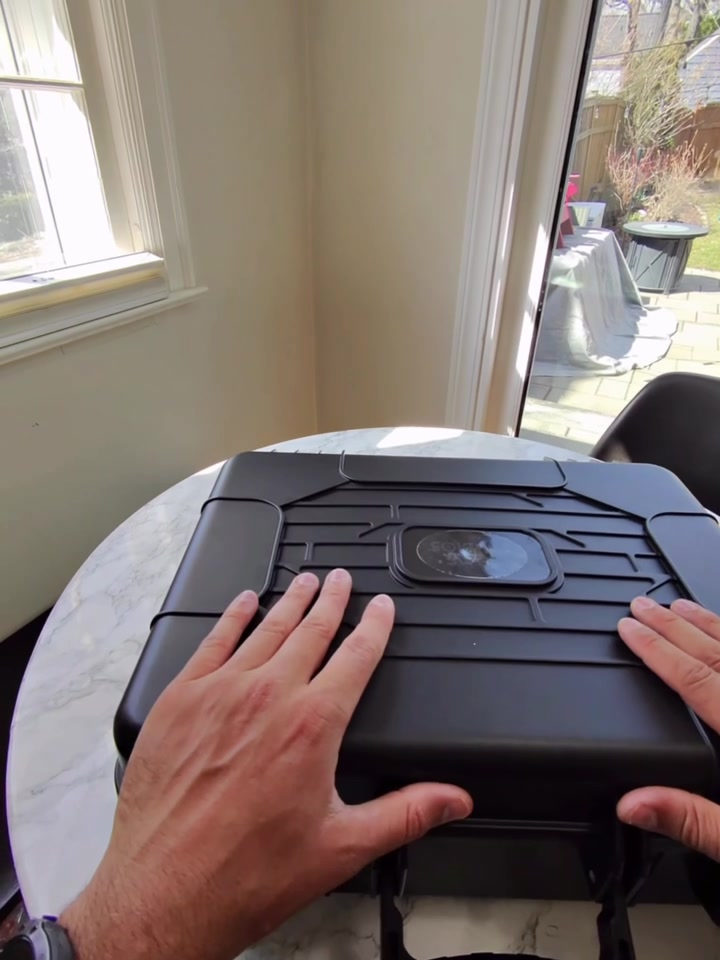
What's in the Case
- Headset, USB-C charger, headphone cable, lens cloth, and wipes
- No controllers needed. Batteries removed; hand tracking only
Controls
- Hold power button to turn on/off; tap once to sleep
- Volume: inside button = down, outside = up
- Dial adjusts lens spacing; typically not needed
- Light indicatorsIn sessionChargingFully chargedSleeping / Off
Fit
- Turn the back knob to tighten/loosen; works like a bike helmet
- Pull earpieces all the way down and over the ears
Care & Packing
- Unplug the headphone jack before packing
- Crank the knob all the way down before closing the case
- See for cleaning details
Step 02
Navigating the Main Menu & Launching
Opening the Menu
- Right hand only. The menu is set to right hand by default (can be changed in Settings)
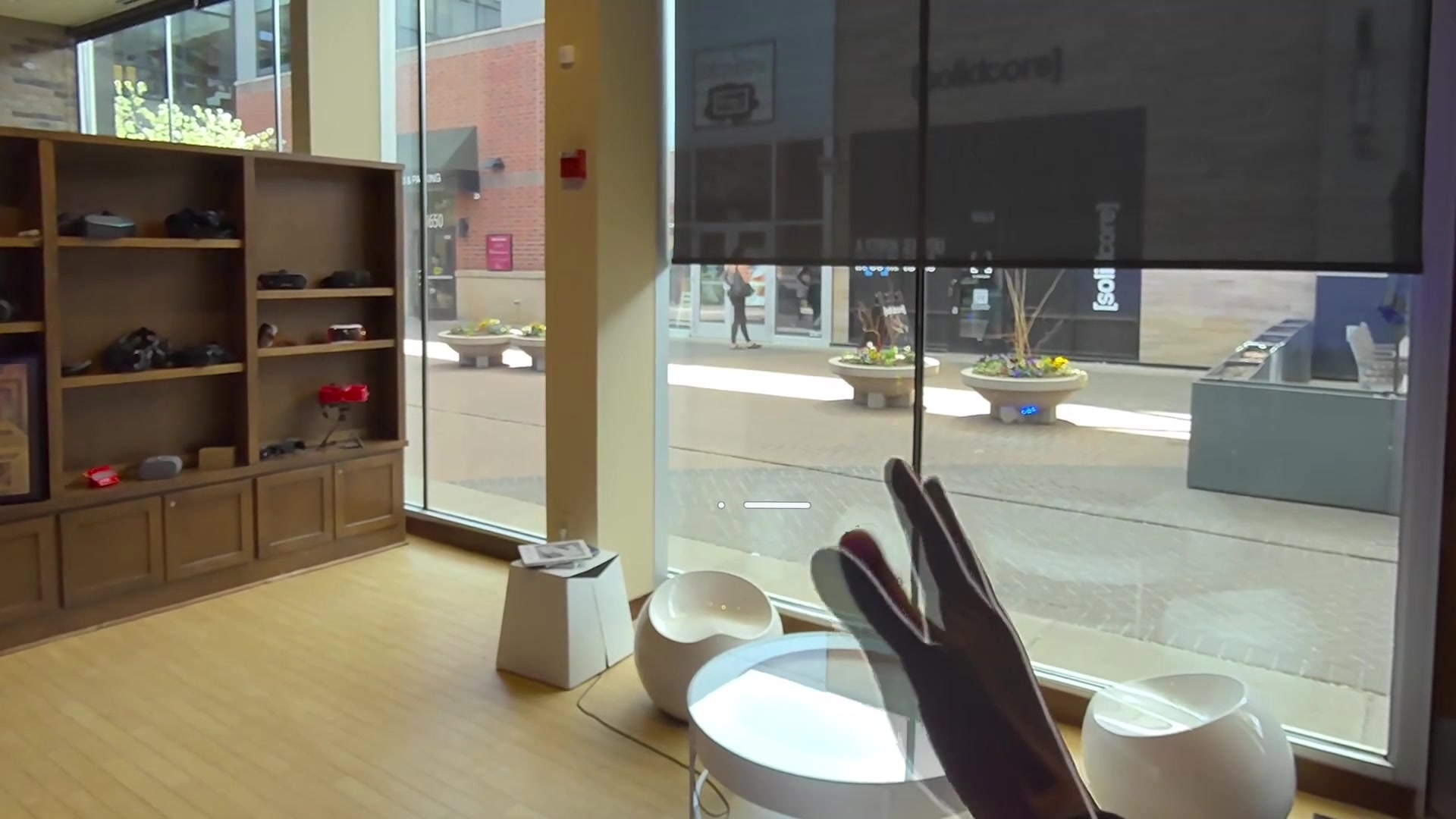
- Hold your right hand out palm up until the Meta button appears, then tap thumb + pointer finger to open the menu
- Recenter by holding a pinch (long press) instead of a quick tap
Launching the App
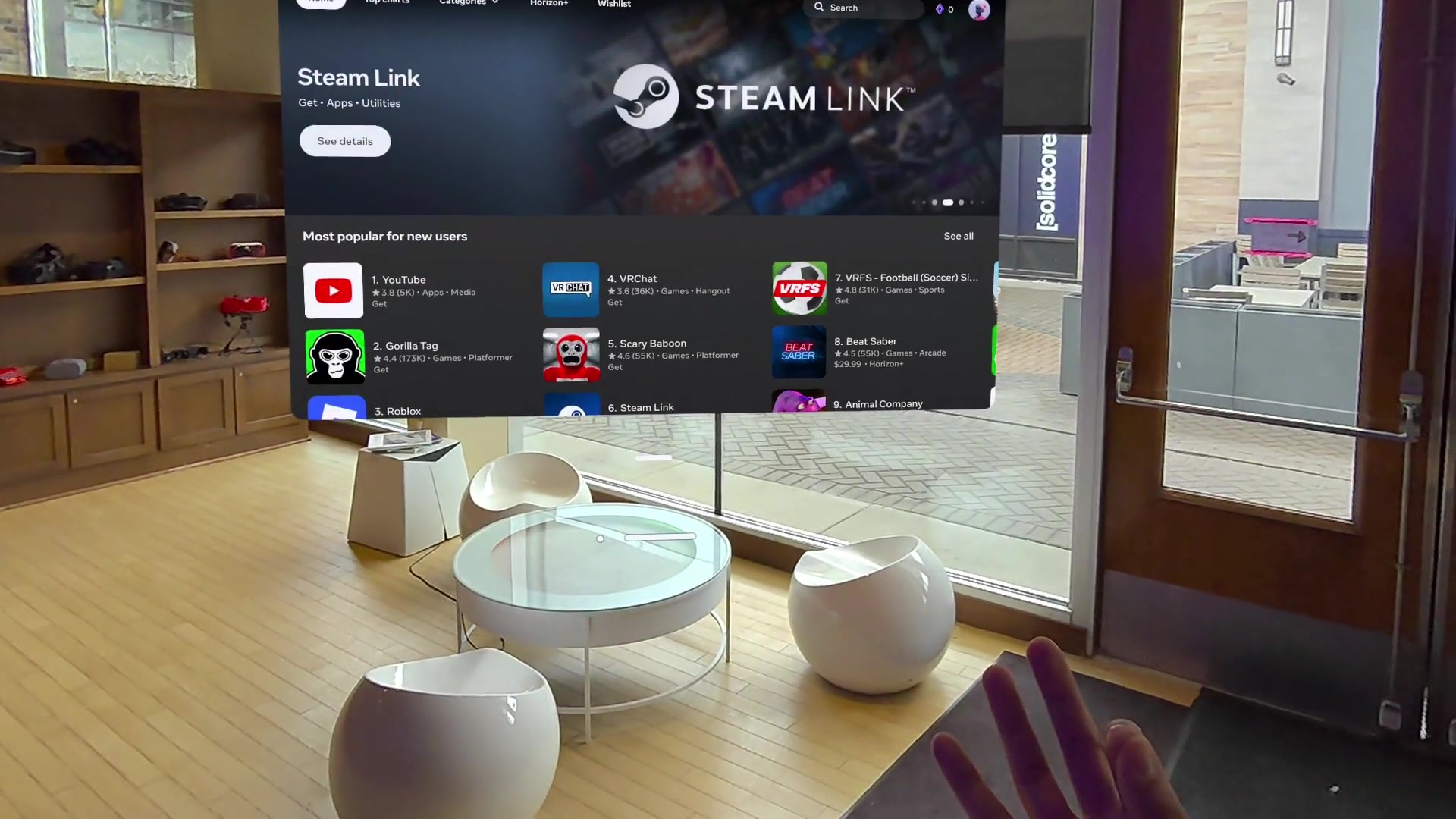
- Tap the nine-dot grid icon to open your app library
- Find the app, point at it, and pinch to launch
Operator vs. Participant
- Operators handle the menu and app launching; participants only see the experience
- Exit: palm up, tap the Meta button, then tap Quit
Step 03
Running an Event, Live Audience
Before You Start
- Confirm headset is charged and clean
- Launch the app once per event; it auto-resets between users
- Don't start under 25% battery. Full charge lasts ~4-5 playthroughs
Getting Them In
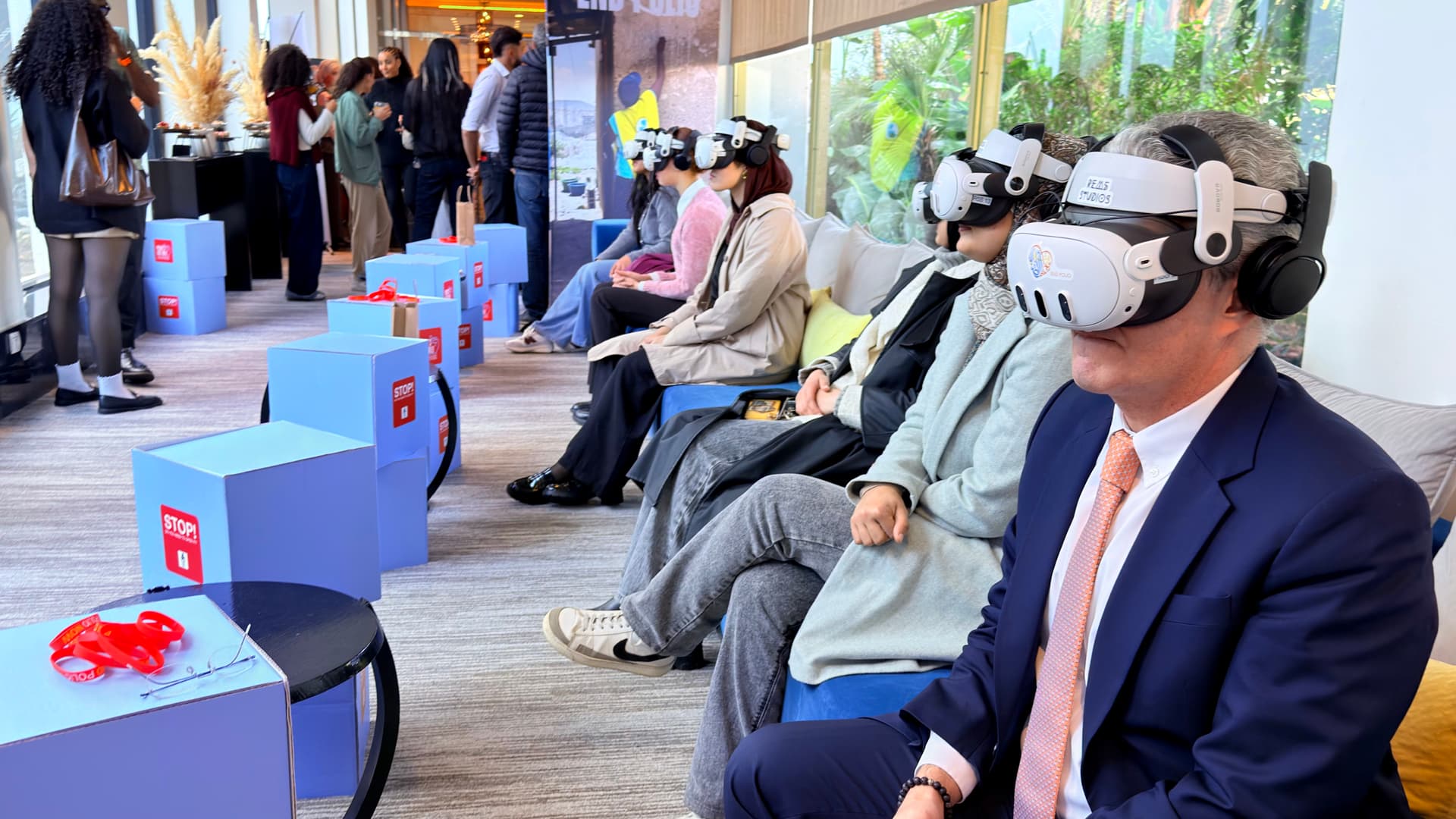
- Seat them with 3-4 feet of space; give a quick preview
- Mention any interactions (reaching, touching, grabbing)
- Help them put it on; secure the strap low on the back of the head
- Adjust until image snaps into focus; they'll know when it's right
During & After
- Stay close. Step in if audio seems low or headset looks off
- Loosen the strap first when done, then share next steps
- Wipe contact areas with antibacterial wipes; lenses with a dry cloth
Path B · 3 Steps
Updating or Refreshing the Headset
The operating system or app needs an update.
Step 01
Connect to Wi-Fi
Not needed to run a live event
Connecting
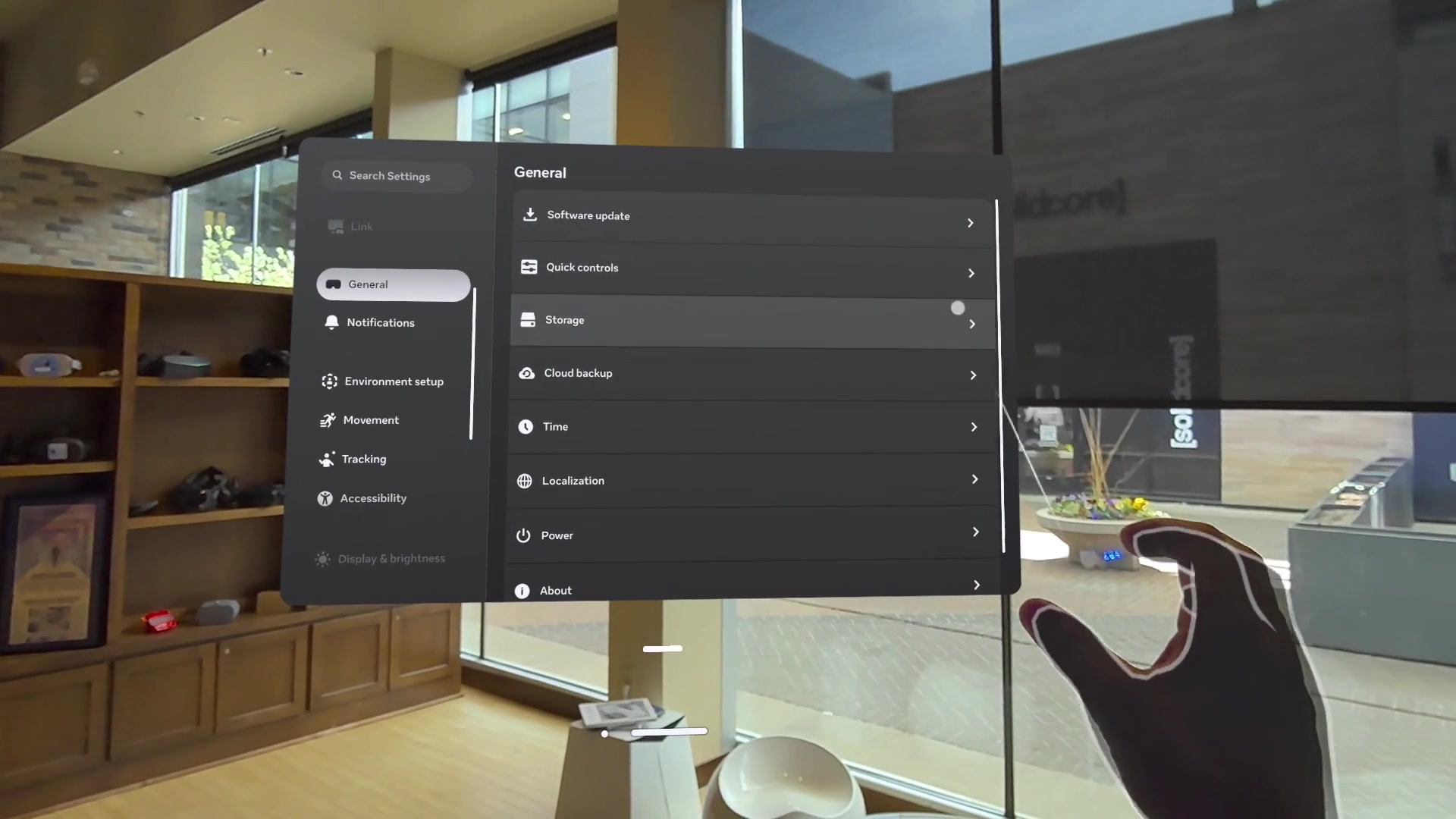
- Open quick controls from the menu to find Wi-Fi settings
- Connect like any other device; enter the password, and on public networks you may need to accept a click-through page
- Wi-Fi is only needed for downloading updates. Once the experience is on the headset, no internet is required at events
Step 02
Update the Operating System (OS)
When to Update
- Not required to run the app in most cases. Think of it as routine maintenance, roughly every six months
- Check for notifications; the headset alerts you when an update is available
- Ensure Wi-Fi is connected and battery is above 50%
How to Update
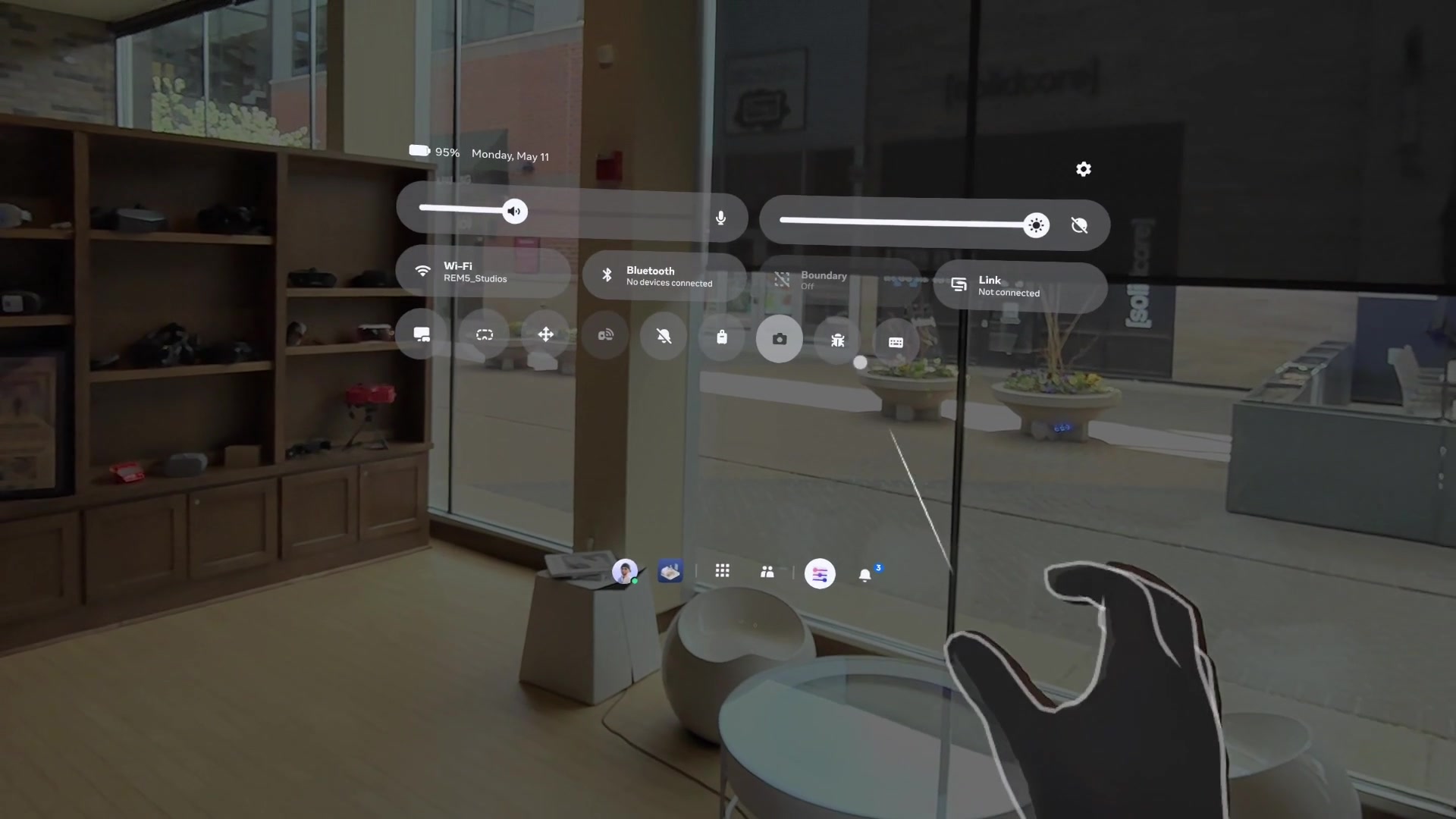
- Open Settings from the main menu and navigate to System/Software Update
- Follow on-screen prompts to download and install
- Wait for the headset to restart automatically when complete
Step 03
Update the App (and Immersive Videos)
Two separate downloads
The app and the immersive videos update independently. You need to do both.
The App
Part 1 · Quick download, under a minute
Immersive Videos
Part 2 · Larger files that live inside the app · ~15 min on Wi-Fi
When Would You Need to Do This?
- REM5 Studios released new video content and told you to update
- A bug was fixed and the team asked you to grab the latest version
- The headset has been sitting for a while and needs a refresh before an event
- Make sure Wi-Fi is connected before starting
Part 1: Force the App to Check for Updates
- Hold the app icon in your library, then tap Settings
- Tap Release Channels, select the Alpha channel, and tap Confirm
- Go back, hold the app icon again, and tap See Details
- Tap Update (you'll see it instead of Start). The version number is based on the date
- Be patient. It can take a few moments for the system to recognize the update and start the download. Sometimes a headset restart is needed
Part 2: Download the Immersive Videos
- Open the app on Wi-Fi after the app update finishes
- Select Download when prompted; don't choose Stream. You want the full files on the headset
- Don't put the headset down until you see the download has started; the files are large
- Allow ~15 min on good internet for the full download
- Once complete, no internet is needed at events